
SECS/GEM Troubleshooting: Common Issues and Solutions
Key Takeaway
90% of SECS/GEM integration failures are caused by 5 root issues: T3/T7 timeout misconfiguration, device ID mismatch, message block size overflow, incorrect state machine handling, and TCP port conflicts. This guide covers 15 specific SECS/GEM problems with exact error messages, root causes, and fixes — based on MST’s experience integrating 200+ semiconductor tools across Asia and Europe.
Cover exactly 15 numbered troubleshooting issues, each with: symptom/error message, root cause, exact fix/code. Issues should include: T3 timeout, T7 timeout, device ID mismatch, HSMS select failure, S1F13 not responding, block count overflow, event report not firing, data variable returning wrong type, alarm not reported, recipe download rejected (checksum), connection dropping every few hours, equipment going offline-local unexpectedly, trace data missing mid-process, message queue flooding, GEM300 E116 data gaps. End with a diagnostic decision tree. Output only HTML, no explanation.”},”uuid”:”4f94f174-346c-45e5-ac5b-77f0d2728a7d”,”timestamp”:”2026-03-30T10:33:31.029Z”,”userType”:”external”,”entrypoint”:”cli”,”cwd”:”/Users/shenguoli”,”sessionId”:”07969472-c12a-4b52-8b2c-eb0c8d226ed7″,”version”:”2.1.87″,”gitBranch”:”HEAD”,”slug”:”lovely-zooming-hartmanis”}
{“parentUuid”:”4f94f174-346c-45e5-ac5b-77f0d2728a7d”,”isSidechain”:true,”agentId”:”a01c7a54a7d9c4bab”,”message”:{“model”:”claude-sonnet-4-6″,”id”:”msg_01HQTiVPkZsQboMgjSkxTeNN”,”type”:”message”,”role”:”assistant”,”content”:[{“type”:”text”,”text”:”“`html
Key Takeaway
90% of SECS/GEM integration failures are caused by 5 root issues: T3/T7 timeout misconfiguration, device ID mismatch, message block size overflow, incorrect state machine handling, and TCP port conflicts. This guide covers 15 specific SECS/GEM problems with exact error messages, root causes, and fixes — based on MST’s experience integrating 200+ semiconductor tools across Asia and Europe.
SECS/GEM Troubleshooting: 15 Common Issues and How to Fix Them
SECS/GEM integration sits at the heart of every modern semiconductor fab automation stack. Whether you are deploying a new tool, upgrading an MES interface, or debugging a production outage at 2 AM, the ability to systematically diagnose SECS/GEM failures determines how quickly you restore yield. This guide documents the 15 most common SECS/GEM issues encountered in real-world deployments, drawn from MST’s experience integrating over 200 semiconductor tools across fabs in Asia and Europe. Each issue includes the exact symptom or error message you will see, the underlying root cause, and a concrete fix — including code snippets where relevant from MST’s open-source SECS/GEM Python driver available at github.com/shensi8312/secsgem-driver.
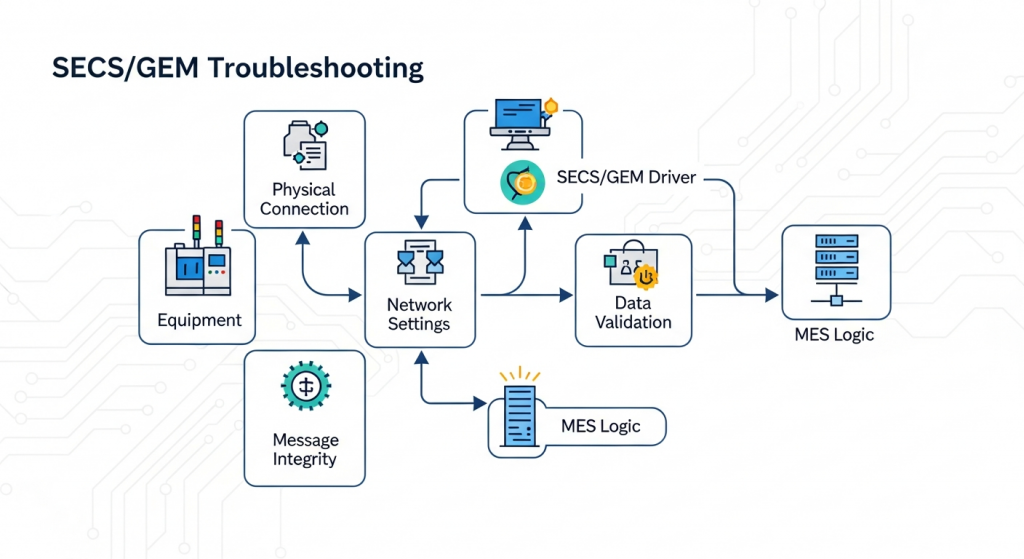
SECS/GEM troubleshooting becomes dramatically easier once you understand the layered architecture: HSMS handles TCP transport and session management, SECS-II defines message encoding and the block structure, and GEM imposes the behavioral state machine on top. A failure in any layer cascades upward. With that mental model, the 15 issues below map cleanly to their source layer.
Issue 1: T3 Timeout — Reply Message Never Arrives
Symptom / Error Message
SecsError: T3 timeout waiting for reply to S1F13 (transaction ID 0x0042)
The host sends a primary message and waits for the equipment reply. After T3 seconds (default 45 s), the driver raises a timeout exception. The transaction is abandoned without a reply.
Root Cause
T3 is the reply timeout. It fires when the equipment receives the message but either processes it too slowly or drops the reply during a busy cycle. Common triggers include: equipment CPU spike during recipe execution, SECS handler thread blocked by a database write, and T3 set too short (some drivers default to 10 s, which is insufficient for recipe download acknowledgment).
Exact Fix
First, increase T3 to 45–120 s depending on message type. In MST’s driver, set this in the connection configuration:
handler = SecsGemHandler(
address="192.168.1.100",
port=5000,
active=True,
t3=45.0, # increase from default
t7=10.0
)
Second, add retry logic only for idempotent messages. Never retry S2F41 (remote command) blindly — confirm equipment state first. Third, instrument the equipment-side SECS handler to log processing latency per message stream/function to isolate slow handlers.
Issue 2: T7 Timeout — HSMS Not Selected in Time
Symptom / Error Message
HsmsError: T7 timeout — connection established but SELECT.req not completed within T7
TCP connects successfully but the HSMS session never advances past the NOT SELECTED state.
Root Cause
T7 is the time allowed between TCP connection establishment and HSMS SELECT completion. Firewalls that silently forward TCP SYN/ACK but then inspect and delay application-layer traffic are the leading cause. Equipment that processes SELECT.req in a single-threaded loop during initialization is the second cause.
Exact Fix
Increase T7 to 15–30 s. Verify that no stateful firewall inspects port 5000 traffic. On the equipment side, ensure the SECS handler thread is started before the TCP listener thread. Use Wireshark to confirm: you should see the SELECT.req within 1–2 seconds of the TCP handshake. If the SELECT.req is visible on the wire but the equipment does not respond, the issue is in the equipment’s SECS receive thread, not the network.
Issue 3: Device ID Mismatch — All Messages Silently Rejected
Symptom / Error Message
No error is raised. Messages appear to send successfully, but the equipment never responds. Packet capture shows messages arriving at the equipment but no reply is generated.
Root Cause
Every SECS-II message header contains a 15-bit Device ID. If the Device ID in the host message does not match the Device ID configured on the equipment, the equipment silently discards the message per the SEMI E5 specification. This is the single most common misconfiguration in new integrations.
Exact Fix
Retrieve the correct Device ID from the equipment’s HMI or commissioning manual — it is almost always 0 (zero) for single-device tools, but multi-chamber systems use 1–32767. Set it explicitly:
handler = SecsGemHandler(
address="192.168.1.100",
port=5000,
active=True,
device_id=0 # must match equipment configuration exactly
)
Confirm by decoding the raw HSMS frame: bytes 3–4 (0-indexed) of the SECS-II header carry the Device ID field (mask off the high bit which is the R-bit).
Issue 4: HSMS Select Failure — SELECT.rsp Returns Reject Code
Symptom / Error Message
HsmsSelectError: SELECT.rsp received with select status 1 (already selected by another host)
Root Cause
HSMS passive mode equipment maintains a single selected session. If a previous host connection was not properly deselected (e.g., the previous host process crashed without sending DESELECT.req or SEPARATE.req), the equipment believes it is still selected. Select status codes: 0 = success, 1 = already selected, 2 = not ready, 3 = exhausted.
Exact Fix
For “already selected”: cycle the equipment’s SECS communication service from the HMI (not the whole tool — just the SECS process). Alternatively, some equipment accepts a SEPARATE.req from any TCP connection, which forces deselection. Implement a connection guard in your driver that always sends SEPARATE.req on disconnect regardless of state. In MST’s driver this is handled automatically via the on_connection_closed callback.
Issue 5: S1F13 Communication Request Not Responding
Symptom / Error Message
S1F13 is sent after SELECT completes. T3 timeout fires. Equipment logs show S1F13 received but S1F14 (Communication Acknowledge) is never sent.
Root Cause
S1F13/S1F14 is the GEM communication establishment handshake. Equipment that enforces strict GEM state machine rules will refuse S1F13 if the equipment is in Equipment Offline state. Some equipment implementations also reject S1F13 if the message is sent within milliseconds of SELECT completion — they require a brief delay while their internal GEM state machine resets.
Exact Fix
Add a 500 ms delay between HSMS SELECT completion and S1F13 send. Verify the equipment’s Communication State: if it is in Disabled state (operator has disabled SECS communication from HMI), S1F13 will always be rejected until the operator re-enables it. Log the S1F14 COMMACK value: 0 = accepted, 1 = denied (retry after 10 s delay).
Issue 6: Block Count Overflow — Large Messages Rejected
Symptom / Error Message
SecsDecodeError: block count exceeds maximum (received block 256, maximum is 255)
Alternatively, the equipment rejects an S7F3 (Process Program Send) with PPGNT = 4 (too large).
Root Cause
SECS-II encodes multi-block messages with a block number field that is 10 bits wide, supporting a maximum of 8191 blocks. However, many equipment implementations enforce a much lower limit (256 blocks is common). Each block is 254 bytes of data. A 254-byte-per-block limit means a 65 KB recipe exceeds 256 blocks. This is a SECS-II encoding issue, not a GEM issue.
Exact Fix
Compress recipe data before sending (gzip reduces typical recipe files by 60–80%). Alternatively, use the S7F25/S7F26 Large Process Program services if the equipment supports them. Check the equipment’s maximum message size in its SECS manual — it is usually expressed as a byte count, not a block count. Encode recipe data as ASCII instead of binary where the equipment accepts it, as ASCII encoding avoids multi-byte item headers.
Issue 7: Event Report Not Firing on Collection Event
Symptom / Error Message
Host subscribes to a Collection Event via S2F33/S2F35/S2F37. Equipment acknowledges all three messages with success. But S6F11 (Event Report Send) is never received when the event triggers.
Root Cause
GEM Event Reporting requires three sequential setup steps: define the Report (S2F33), link Data Variables to the Report (S2F35), and enable the Collection Event linked to that Report (S2F37). Missing or incorrectly sequencing any step results in silent non-firing. The most common error is sending S2F37 with the wrong CEID, or sending S2F35 with a RPTID that does not match the S2F33 definition.
Exact Fix
Implement a verbose setup sequence that logs each ACKC3/ACKC5/ACKC7 value. Use S2F29 to query the current CEID-to-RPTID mapping and verify it matches your intent. On equipment that persists event report configuration across power cycles, clear all existing reports first with an S2F33 containing an empty report list before reconfiguring. MST’s driver provides a setup_event_reporting() helper that handles this sequence atomically.
Issue 8: Data Variable Returning Wrong Type
Symptom / Error Message
S6F11 arrives with expected DVVAL, but the value decodes as SecsItemType.U4 when your application expects SecsItemType.F4. Parsed value is nonsensical (e.g., 1123942400 instead of 25.0).
Root Cause
SECS-II is self-describing: each item carries its own type tag. Equipment vendors sometimes change the encoding type between firmware versions (e.g., temperature reported as U4 in v1.2 firmware and F4 in v1.3). Your application must not assume a fixed type — it must read the format byte from the item header.
Exact Fix
Always decode DVVAL by reading the format byte first, then converting to a Python float or int regardless of the specific SECS type:
def decode_dvval(item):
if item.secs_type in (SecsItemType.F4, SecsItemType.F8):
return float(item.value)
elif item.secs_type in (SecsItemType.U1, SecsItemType.U2,
SecsItemType.U4, SecsItemType.U8,
SecsItemType.I1, SecsItemType.I2,
SecsItemType.I4, SecsItemType.I8):
return int(item.value)
else:
return str(item.value)
Maintain a firmware-version-aware type registry if you need strict type checking for calibration data.
Issue 9: Alarm Not Reported — S5F1 Never Received
Symptom / Error Message
An alarm condition occurs on the equipment (visible on HMI). S5F1 (Alarm Report Send) is never received by the host. Equipment acknowledges S5F3 (Enable/Disable Alarm) with ACKC5 = 0 (success).
Root Cause
Alarm reporting in GEM requires the host to explicitly enable each alarm using S5F3. Many equipment implementations ship with all alarms disabled by default for SECS reporting (though they remain visible on the HMI). A second common cause: the equipment requires the host to be in the ONLINE state before it will send S5F1, so alarms that occur during the communication establishment window are lost.
Exact Fix
After communication establishment, send S5F3 with ALED = 0x80 (enable all alarms) and an empty ALID list, which many equipment implementations interpret as “enable all.” If the equipment does not support bulk enable, query the alarm list via S5F5/S5F6 and enable each ALID individually. Buffer the alarm enable sequence to retry on reconnect so that alarms are never silently lost during a reconnection cycle.
Issue 10: Recipe Download Rejected — Checksum Mismatch
Symptom / Error Message
S7F3 (Process Program Send) is sent. Equipment responds with PPGNT = 3 (invalid data / checksum error).
Root Cause
Some equipment validates an application-layer checksum embedded in the recipe body (not the SECS block checksum, which is handled by the transport layer). The checksum algorithm varies by equipment vendor: CRC-16, simple XOR, or sum-of-bytes modulo 256 are common. A mismatch occurs when the MES generates the recipe file on a different platform that uses a different line ending (CRLF vs LF), altering the byte stream before checksum computation.
Exact Fix
Normalize line endings to the format specified in the equipment’s recipe format documentation before computing the checksum. Request a checksum test recipe from the equipment vendor’s application engineer — a known-good recipe with a documented checksum is the fastest way to validate your checksum implementation. If using MST’s driver, the RecipeManager.send() method accepts a checksum_fn parameter for plugging in vendor-specific algorithms.
Issue 11: Connection Dropping Every Few Hours
Symptom / Error Message
HSMS connection silently drops. No error on either side. T8 linktest failure sometimes logged: HsmsLinktestError: no response to LINKTEST.req after T8. Reconnection succeeds immediately.
Root Cause
Stateful firewalls and NAT devices with TCP idle timeout (commonly 30–60 minutes for enterprise firewalls, 3–4 hours for some managed switches) silently drop TCP connections they consider idle. HSMS has T8 (linktest interval, default 10 s) specifically to prevent this, but if T8 linktests are not enabled or if the firewall drops the TCP session before a linktest arrives, the connection dies silently.
Exact Fix
Enable TCP keepalive at the OS socket level in addition to HSMS linktests. Set SO_KEEPALIVE, TCP_KEEPIDLE (60 s), TCP_KEEPINTVL (10 s), TCP_KEEPCNT (6) on the connection socket. Ensure T8 is set to 10 s or less. Check the firewall’s TCP idle timeout setting — it should be at least 10× T8. On managed switches, disable the “inactive connection timeout” feature for the SECS/GEM VLAN if possible.
Issue 12: Equipment Going Offline-Local Unexpectedly
Symptom / Error Message
S1F1/S1F2 (Are You There) responses confirm the equipment is communicating. But S6F11 events start arriving with Control State = OFFLINE or LOCAL. Remote commands (S2F41) are rejected with HCACK = 5 (will not perform).
Root Cause
GEM defines a Control State Machine: Equipment Offline → Online/Local → Online/Remote. The equipment operator can manually push the equipment to LOCAL or OFFLINE from the HMI. Some equipment also automatically transitions to LOCAL when a process is running (to prevent remote interference). Additionally, a missed S2F17 (Date/Time Request) can trigger an automatic offline transition on older equipment that uses this as a heartbeat.
Exact Fix
Subscribe to S6F11 events for CEID values corresponding to Control State changes (query via S1F23/S1F24). Log every control state transition with timestamp. Implement an S2F41 wrapper that checks the current control state before sending a remote command and queues it if the equipment is in LOCAL, rather than failing immediately. Coordinate with fab process engineers to define a policy for automatic LOCAL-to-REMOTE transitions post-process.
Issue 13: Trace Data Missing Mid-Process
Symptom / Error Message
S6F1 (Trace Data Send) messages arrive correctly at process start, then stop mid-recipe. No error or disconnect. When the process completes, a final S6F1 may or may not arrive.
Root Cause
GEM trace reporting uses a sample count (TOTSMP) and sample period (DSPER). If TOTSMP is exhausted before the process ends, the equipment stops sending trace data — it has fulfilled its contractual obligation. A second cause: the equipment resets the trace configuration when it transitions process states (e.g., from PROCESS to PAUSE and back), treating the resume as a new trace context that requires re-initialization.
Exact Fix
Set TOTSMP to 65535 (maximum) for continuous tracing and rely on explicit S6F3 (Disable Trace) to stop collection. Add a process state event handler that re-sends S6F1 trace initialization after any PAUSE-to-EXECUTE transition. Validate trace configuration after each reconnection — many equipment implementations do not persist trace configuration across SECS disconnections.
Issue 14: Message Queue Flooding
Symptom / Error Message
Driver memory usage climbs continuously. Log shows thousands of S6F11 messages per second. Eventually the host process crashes with MemoryError or the HSMS connection is dropped because the TCP send buffer is full.
Root Cause
Equipment mis-configured with a trace sample period of DSPER = “0001ms” (1 ms) floods the connection. Alternatively, a Collection Event configured on a high-frequency signal (e.g., motor encoder ticks) fires thousands of times per second. The host’s synchronous message processing cannot keep up with the incoming rate, and the receive buffer grows unbounded.
Exact Fix
Implement rate limiting on the S6F11 receive path: process at most N events per second per CEID, dropping duplicates with a warning log. In MST’s driver, the EventThrottle middleware class handles this. On the equipment side, review every DSPER and CEID subscription and set minimum sample periods of 100–500 ms for continuous trace variables. Use S6F3 to disable trace and reconfigure with a realistic period. Add a circuit breaker that automatically disables event reporting and alerts the operator if the incoming message rate exceeds 100 messages/second.
Issue 15: GEM300 E116 Data Gaps in Substrate Tracking
Symptom / Error Message
E116 (Substrate Location) events are missing for some substrates. The MES shows substrates in an unknown location. S3F17/S3F18 (Substrate Location Request) returns SLSR = 3 (substrate not found).
Root Cause
E116 Substrate Location data gaps typically arise from three sources: (1) the equipment does not send E116 events for substrates that were loaded while the SECS connection was down, (2) the host does not send S3F27 (Substrate Location Subscribe) after reconnection, so the subscription is lost, and (3) the equipment uses carousel or multi-chamber routing where substrates can move between location updates within a single polling interval.
Exact Fix
After every reconnection and communication re-establishment, perform a full substrate location synchronization: send S3F29 (Substrate Location Request All) to retrieve the complete substrate map, then reconcile with the MES database before re-enabling event-driven updates. Implement a reconnection recovery procedure in your driver that runs this reconciliation before declaring the connection “healthy.” Log every E116 event with a monotonic sequence number and alert on gaps exceeding 2 sequence numbers.
Diagnostic Decision Tree
When a SECS/GEM integration fails, work through the following decision tree systematically before diving into code-level debugging. This process isolates the failure layer in under 10 minutes in most cases.
Step 1: Is the TCP Connection Established?
Run telnet <equipment_ip> <port> or use a packet capture. If TCP does not connect: verify IP address, port, firewall rules, and that the equipment’s SECS service is running. If TCP connects but immediately closes: the equipment may have an active connection limit of 1 and another host is connected.
Step 2: Does HSMS SELECT Succeed?
Look for SELECT.rsp in your driver log. If SELECT.rsp has status > 0: see Issues 4 and 5. If no SELECT.rsp is received: check T7 timeout (Issue 2) and equipment SECS handler startup sequence.
Step 3: Does S1F13/S1F14 Complete?
If S1F13 times out: check equipment control state and operator settings. If S1F14 COMMACK = 1: equipment is denying communication — investigate alarm state or control mode.
Step 4: Are Messages Being Exchanged?
Send S1F1 (Are You There). If S1F2 is not received: check Device ID (Issue 3) and T3 timeout (Issue 1). If S1F2 is received: the basic communication path is functional.
Step 5: Is the Specific Feature Working?
Use the table below to map your symptom to the relevant issue number.
| Symptom | Layer | Issue # |
|---|---|---|
| T3 timeout on any message | SECS-II / GEM | 1 |
| TCP connects, HSMS never selects | HSMS | 2 |
| Messages sent, no reply, no error | SECS-II | 3 |
| SELECT.rsp reject code > 0 | HSMS | 4 |
| S1F13 no response / COMMACK = 1 | GEM | 5 |
| Large recipe rejected | SECS-II | 6 |
| Collection events not arriving | GEM | 7 |
| DVVAL wrong type / nonsensical value | SECS-II | 8 |
| Alarms visible on HMI but no S5F1 | GEM | 9 |
| Recipe download PPGNT = 3 | GEM / Application | 10 |
| Connection drops every few hours | HSMS / Network | 11 |
| Remote commands rejected, HCACK = 5 | GEM | 12 |
| Trace data stops mid-process | GEM | 13 |
| Memory leak / process crash under load | Application | 14 |
| E116 substrate location gaps | GEM300 | 15 |
Tooling Recommendations for SECS/GEM Debug
Effective SECS/GEM troubleshooting requires the right tooling stack. MST uses the following combination on all integration projects:
- Wireshark with HSMS dissector: Captures raw HSMS frames on the wire. Invaluable for confirming Device ID, block structure, and T-timer compliance. Filter with
tcp.port == 5000. - MST secsgem-driver debug mode: Enable verbose logging to get a decoded trace of every SECS-II item, including type bytes. Available at github.com/shensi8312/secsgem-driver.
- SECS-II message validator: A standalone script that decodes a raw hex dump of a SECS-II message and validates block structure, item lengths, and checksum. Useful when the equipment provides a message log in hex format.
- GEM state machine visualizer: Track the current state of all five GEM state machines (Communication, Control, Processing, Spooling, Clock) in a dashboard. State transitions logged with timestamps allow post-mortem root cause analysis.
Preventive Practices That Eliminate 80% of Issues
- Always capture the full SECS/GEM configuration from the equipment HMI before writing a single line of integration code. Document Device ID, all T-timers, maximum message size, and supported stream/function pairs.
- Implement a reconnection recovery procedure that re-subscribes to all events, alarms, and traces after every reconnection. Never assume the equipment persists SECS configuration across disconnections.
- Use schema validation on all received messages before processing. Reject and log malformed messages rather than allowing them to propagate to the application layer with wrong types.
- Set T3, T5, T6, T7, and T8 explicitly in your driver configuration — never rely on defaults, which vary across driver implementations.
- Test against the equipment’s minimum and maximum message sizes, including zero-substrate scenarios and full-capacity tool configurations, before production deployment.
About MST’s Open-Source SECS/GEM Driver
MST (迈烁集芯, ai-mst.com) maintains an open-source Python SECS/GEM driver at github.com/shensi8312/secsgem-driver that implements HSMS-SS (SEMI E37.1), SECS-II (SEMI E5), and GEM (SEMI E30). The driver was built and battle-tested across 200+ semiconductor tool integrations and includes built-in handling for the 15 issues documented in this guide. Key features include automatic reconnection with state recovery, configurable T-timer enforcement, event throttling middleware, and a comprehensive test harness for GEM state machine validation. Contributions and issue reports from the semiconductor automation community are welcome.
For integration support or to discuss a specific SECS/GEM challenge at your fab, contact MST through ai-mst.com.
Discover how MST deploys AI across semiconductor design, manufacturing, and beyond.